By default, a new Windows 10 installation will have the firewall enabled and set to not respond to ICMP pings, even from hosts on a private network. This can resolved enabling the correct whitelist entries in the firewall.
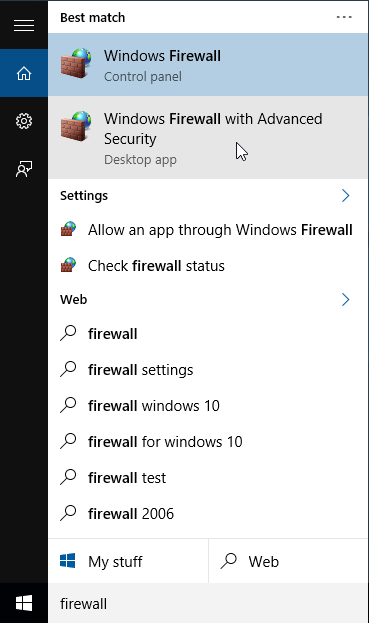
- Click the Windows menu icon, then start typing firewall to start listing programs. Select Windows Firewall with Advanced Security.
- Select Inbound Rules (as we want the computer to respond to incoming pings).
- Find the rules File and Printer Sharing (Echo Request). There will be rules for IPv4 and IPv6, and possibly for different network Profiles. Right-click the rule/s you wish to activate and select Enable Rule. Most internal and home networks currently run IPv4.
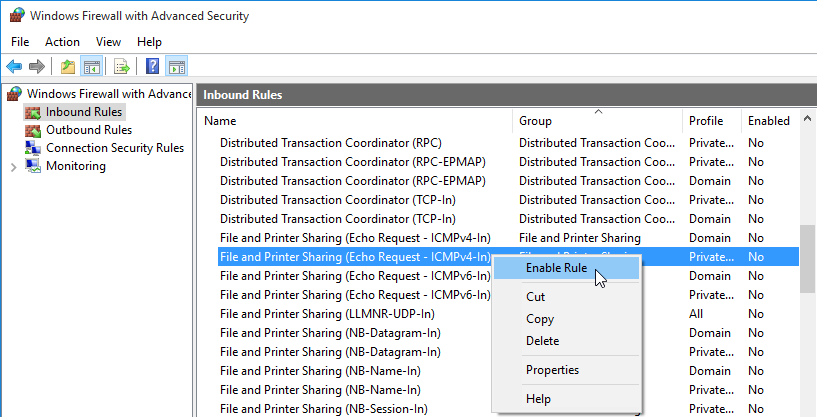
As soon as the rule is enabled the computer should start responding to pings.